
How to log out
Edited
Having trouble getting logged out? Use the steps below to ensure you have logged out successfully. We will show you how to log out on both a desktop and on our app.
LOGGING OUT ON A DESKTOP
1. Go to your Account Information page by visiting this link.
2. In the top right-hand corner you will see the words "Log Out".

5. There you go! You are now logged out.
LOGGING OUT ON THE APP
1. Open the Thrive Market App
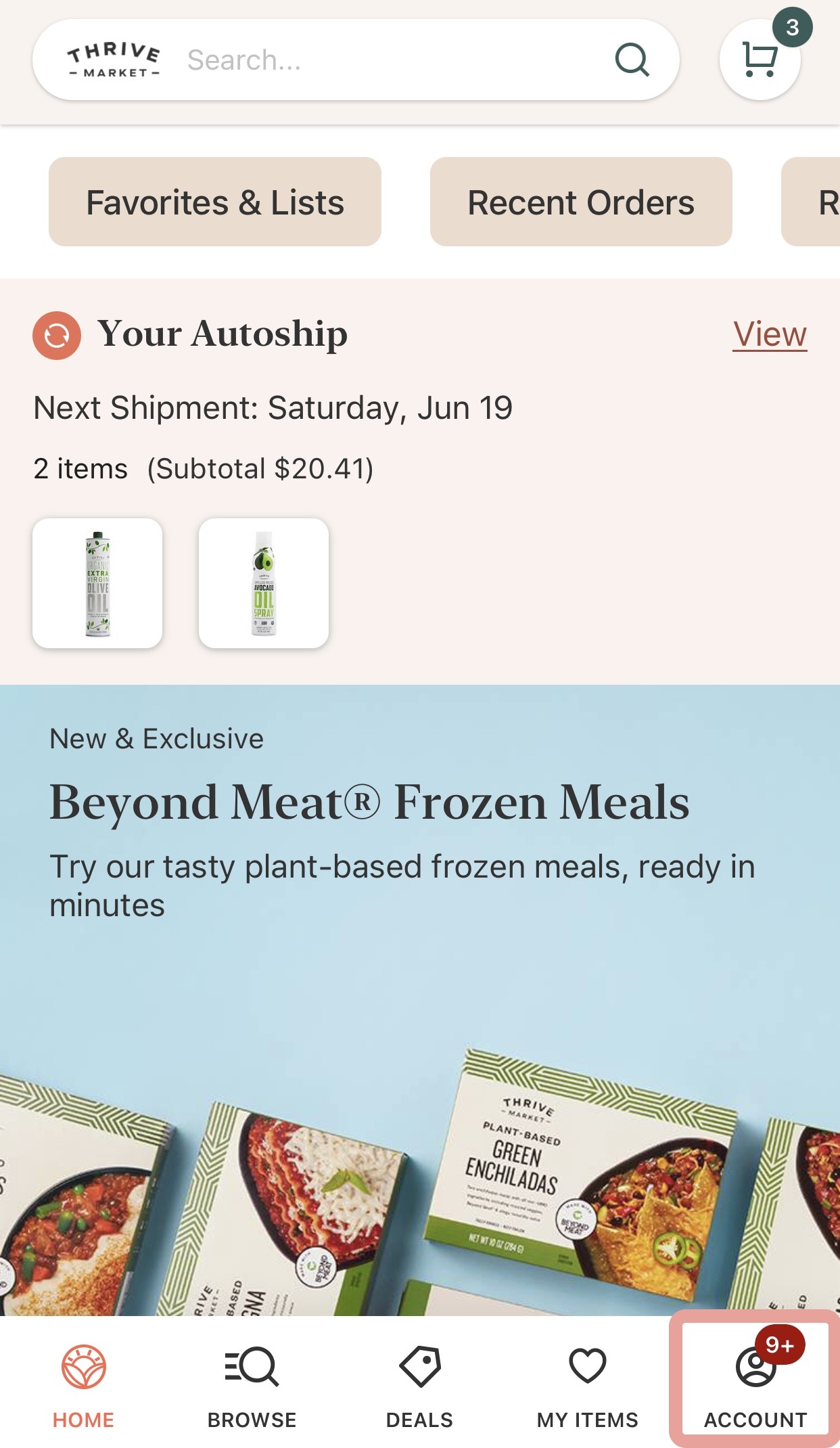
2. On the bottom right-hand corner of the screen, you will see the "Account" icon - click this icon
3. Once you are on the Account page, scroll all the way down to the bottom. You will see the words Log out (we have it shown in a box below) - click here.
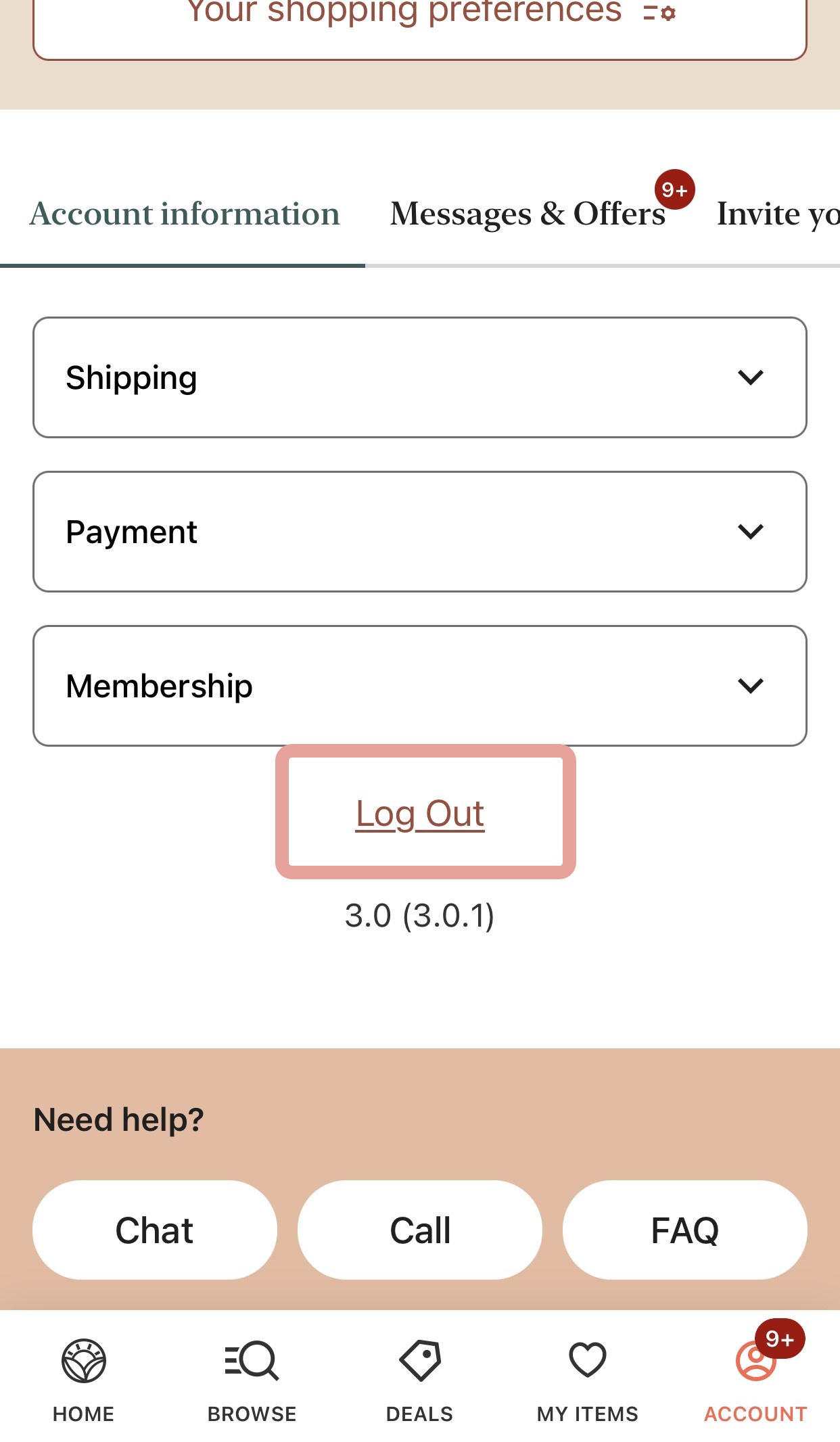
4. You have successfully completed the steps to log out on our app.
Was this article helpful?
Sorry about that! Care to tell us more?